
Getting Started with Your Creality 3D Scanner: 8 Essential Tips for Beginners
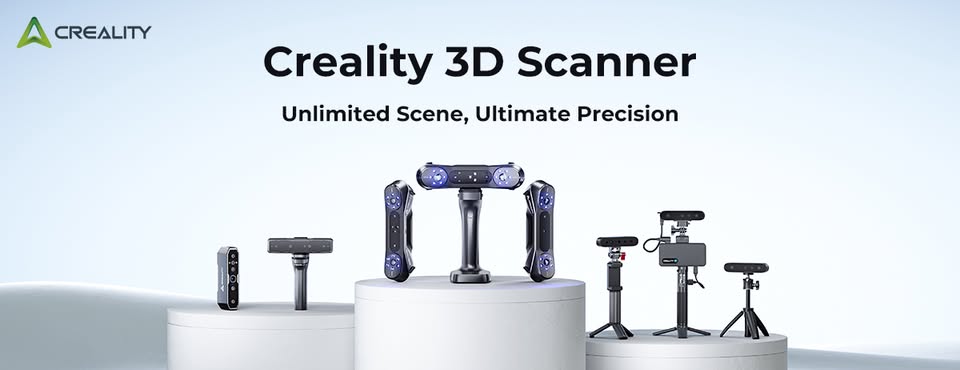
Welcome to the exciting world of 3D scanning! Whether you've just unboxed a Creality Otter, Raptor, or another model, you're on your way to turning real-world objects into digital masterpieces. To help you get clean, accurate results right from the start, here are eight foundational tips that will make the learning process much smoother.
Part 1: Setting the Stage for Success (Preparation)
A great scan begins before you even press the start button. Proper setup is key to avoiding frustration and ensuring high-quality data capture.
1. Master Your Lighting 3D scanners "see" using light, so your lighting conditions are critical.
- Do: Scan in soft, even, and diffuse light. Think of an overcast day or a well-lit room with no single harsh light source. This minimizes shadows and glare.
- Don't: Scan in direct, bright sunlight or in a dimly lit room with deep shadows. Harsh light can create "hot spots" (overexposure) and dark areas that the scanner can't read, leading to holes and inaccurate data.
2. Plan Your Scanning Path Before you start, take a moment to walk around the object. Think of it like a videogame where you need to map out your route.
- Visualize how you will move the scanner to cover every surface, including crevices and undercuts.
- This simple step helps prevent you from missing spots or awkwardly trying to fill in gaps later, which can compromise the scan's alignment.
3. Use Tracking Markers for Tricky Surfaces Scanners need unique geometric features to know where they are. Some surfaces are naturally difficult for them to read.
- When to Use Markers: Apply the included non-reflective marker dots on objects that are shiny, very dark, transparent, or have large, flat, featureless areas (like a car door or a large storage container).
- How They Help: These markers act as a constellation of fixed reference points, giving the scanner a reliable map to follow and preventing it from getting "lost."
Part 2: The Art of the Scan (Technique)
With your environment prepped, the focus shifts to how you physically handle the scanner. Smooth and steady is the name of the game.
4. Keep a Slow, Deliberate Pace It can be tempting to wave the scanner around quickly, but this is counterproductive.
- Think of it as "painting" the object with the scanner's light. Use slow, methodical, and overlapping passes to ensure complete coverage.
- A slower pace gives the scanner and your computer more time to process the data, resulting in a much cleaner and more detailed point cloud.
5. Maintain the Optimal Distance Every scanner has a sweet spot for its operating distance. The Creality Scan software provides a real-time distance indicator on the screen.
- Stay in the Green: Pay close attention to this indicator and try to keep it in the optimal (usually green) range. Drifting too close or too far away will cause the scanner to lose tracking.
- Closer for Detail: Generally, being on the closer side of the optimal range will capture finer details.
6. Scan Large Objects in Sections Trying to scan a massive object in one continuous go can overwhelm both you and your computer.
- Break the object down into smaller, logical sections. For example, scan the front of a chair, then the back, and then the legs as separate projects.
- The Creality Scan software has features to merge these separate projects together. This approach is more manageable and often yields a higher quality final model.
Part 3: Bringing Your Scan to Life (Software)
The raw scan is just the beginning. The real magic happens in the post-processing stage.
7. Embrace the Post-Processing Workflow Don't be discouraged if your initial scan looks noisy or incomplete. This is completely normal. Post-processing is a powerful and essential part of the workflow. Key steps include:
- Cleaning: Removing any stray data points or unwanted background elements.
- Aligning: If you scanned in sections, this is where you'll stitch them together.
- Meshing: This is the final step where the software connects all the individual data points (the point cloud) into a solid 3D mesh, creating your final model.
8. Keep Your Software and Firmware Updated Creality frequently releases updates that improve performance, tracking algorithms, and feature sets.
- Check Regularly: Make it a habit to check for the latest versions of the Creality Scan software and your scanner's firmware.
- Where to Find Them: The most reliable place to find these is on the official Creality website or through the Creality Cloud platform.
By keeping these tips in mind, you'll be well on your way to creating amazing 3D scans. Remember that practice is key, so don't be afraid to experiment, learn from your mistakes, and enjoy the process of digitizing the world around you.