
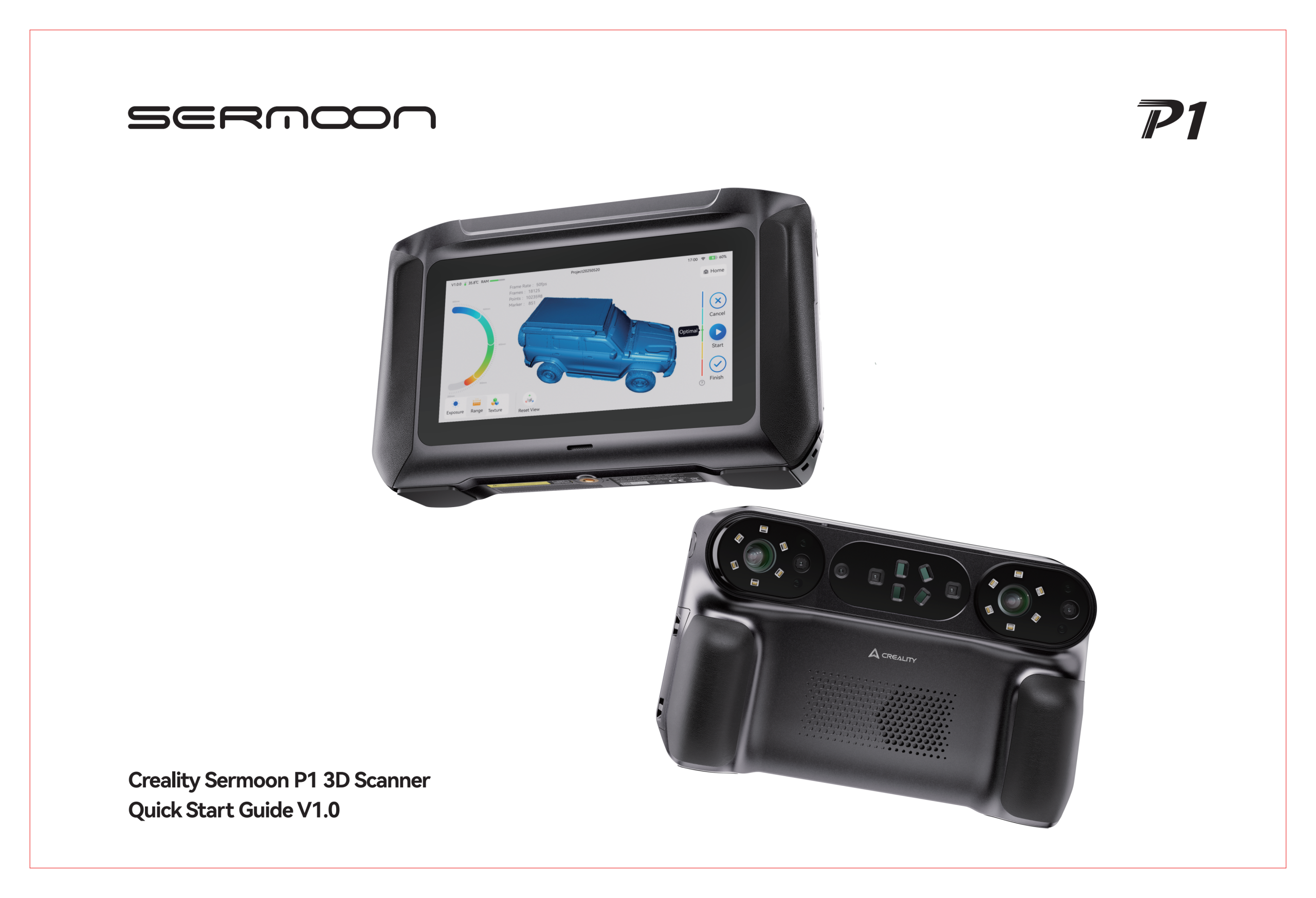
Creality Sermoon P1 3D Scanner Metrology Grade Accuracy V1.0 Quick Start Guide
Professional Industrial 3D Scanning Manual with NIR and Blue Laser Mode Details
FOREWORD
Thank you for choosing the Creality Sermoon P1 3D scanner. This guide aims to help you quickly understand the basic information and scanning process of this scanner, opening up a whole new 3D scanning experience.
You can visit the Creality official Wiki: https://wiki.creality.com/3d-scanner to get the latest "Creality Sermoon P1 Quick Start Guide", detailed tutorials and videos. This guide will be continuously updated; please refer to the latest version for the most up to date information.
Important Notes
- Do not allow the scanner to come into contact with water or other liquids. Avoid bumping or impact during use.
- To ensure optimal performance, please operate in a suitable working environment.
TABLE OF CONTENTS
- 1. Product Introduction
- 1.1 Scanner Components
- 1.2 Packing List
- 2. First Time Use
- 2.1 Standalone Mode (No computer connection required)
- 2.2 PC Connection Mode (Connect to Computer)
- 3. Detailed Explanation of Scanning Modes
- 3.1 Blue Laser Mode
- 3.2 Infrared Mode
- 4. Other Functions
- 4.1 Calibration
- 4.2 System Upgrade
- 4.3 File Transfer
- 5. Specifications
- 5.1 Hardware Parameters
- 6. Precautions
- 6.1 Usage Notes
- 6.2 Maintenance Notes
1. PRODUCT INTRODUCTION
1.1 Scanner Components
- 1. HD Touchscreen
- 2. Power Button
- 3. Blue & White Fill Light x12
- 4. High Precision Camera x2
- 5. Start/Pause Button
- 6. Wide Angle Camera x2
- 7. Replaceable Battery
- 8. Single Line Laser
- 9. Infrared Fill Light x4
- 10. RGB Camera
- 11. Parallel Line Laser
- 12. DOE Projector
- 13. Cross Line Laser
- 14. Type C Interface
1.2 Packing List
- 1. Creality Sermoon P1 3D Scanner *1
- 2. Spare Battery *1
- 3. High Precision Glass Calibration Board *1
- 4. Lanyard *1
- 5. Power Adapter + Connectors *1
- 6. Cleaning Cloth *1
- 7. 2m USB 3.0 Type C Data Cable *1
- 8. Quick Start Guide & Certificate *1
- 9. Reflective Markers (D6mm*10, D3mm*10)
2. FIRST TIME USE
Creality Sermoon P1 supports two working modes: standalone mode and PC connection mode. You can choose the appropriate mode to operate according to your needs.
2.1 Standalone Mode (No computer required)
The Creality Sermoon P1 3D scanner has a built in operating system and screen, allowing it to perform scanning and basic processing independently.
Step 1: Power on Preparation
Make sure the scanner has sufficient power.
Press and hold the power button for 2 seconds to turn on the device and enter the main interface.
Complete First Time Setup
- Language Selection: Select your language and click [Next].
- Network Connection: Select an available local area network. Once connected, you will be automatically prompted to proceed to the next step.
- Privacy Policy: Please read and agree to relevant Privacy Policy and User Agreement before using the device.
- Activation: Device activation takes a while, please be patient.
- Account Login: Supports login with Creality Cloud account. Login can be skipped without affecting normal device use. Skipping login will trigger a confirmation pop up. If you still do not log in, select "Don't Use" to proceed to the next page.
- Device Protection: On this page, you can set a device power on password to prevent unauthorized users from using the device.
- Welcome Page: Tap anywhere on the screen to start using the device.
- Beginner Tutorial Video: You can choose whether to skip it. After watching/skipping, you will be taken directly to the device scanning page to start your first scanning experience.
2.2 PC CONNECTION MODE
Connect to your computer via USB or Wi Fi and use CrealityScan 4 software for more advanced scan control and model processing.
2.2.1 Software Preparation
Visit the official Wiki download page (https://wiki.creality.com/en/software/scan-software), find CrealityScan 4 and install it. Windows users follow prompts after double clicking the installer. macOS users please grant read and write permissions to optimize point clouds.
Wired Connection (USB)
- Insert the Type C connector into the scanner and tighten the screw.
- Insert other end into USB 3.0 or higher port.
- Select "Scan Connection" in the P1 pop up window.
- Software will automatically recognize the scanner.
Wireless Connection (Wi Fi)
- Step 1: Enable P1 Hotspot
- On the Creality Sermoon P1 device screen, access the "Settings" menu, tap "Hotspot", and enable "Allow Others to Join".
- Record the hotspot name and password.
- Step 2: Connect Your Computer to the P1 Hotspot
- In your computer's Wi Fi settings, find the hotspot network name of the Creality Sermoon P1, click to connect, and enter the password.
- Step 3: Software Connection
- Open the CrealityScan 4 software on your computer.
- In the software interface, the software will automatically identify and display the connected Creality Sermoon P1 device.
3. SCANNING PROCESS
Step 2: Start Scanning
Tap "New Project" on the screen to enter the scan preview page (or in CrealityScan 4 software, click "New Project", enter the "Project Name", select the "Folder Path", and click "OK").
Select the appropriate scan mode (Blue Laser/Infrared) and related settings based on the features of the object being scanned. Click "Apply".
Adjust the Scanning Distance
Move the scanner to adjust its distance from the scanned object. When the distance indicator bar is within the green "Optimal" range, it means the current distance is ideal for scanning.
Start & Complete Scanning
Short press the Start/Pause button on the scanner or tap [Start] on screen. Move steadily and slowly from all angles. Press and hold Start/Pause for more than 2 seconds (or tap "Finish") to finish. Point cloud data will display automatically.
Step 3: Model Processing
After the scanning is complete, you can use the processing function built into the Creality Sermoon P1 device or CrealityScan 4 software to generate the final 3D model.
Processing Flow (Standalone or PC):
- Fusion: Fuse multiple frames of point cloud data collected during the scanning process into a complete point cloud.
- Alignment: Multiple scans can be aligned into a complete model for result preview.
- Meshing: Convert point cloud data into triangular mesh surfaces to generate the basic shape of the model.
- Color Mapping: If color information was captured during scanning, this step will map the color and texture onto the model surface.
PC Mode Shortcuts (CrealityScan 4)
- Shift + Left Mouse Button (Drag): Select
- Ctrl + Left Mouse Button (Drag): Cancel
- Alt + Left Mouse Button: Select marker
4. DETAILED SCAN MODES
3.1 Blue Laser Mode
Suitable for scanning objects requiring high accuracy and rich details, it usually needs to be used with markers.
Cross Line Laser
- Features: Fast scanning speed and high efficiency
- Applicable scenarios: Scanning large objects. It is necessary to attach markers directly to the object's surface.
Parallel Line Laser
- Features: Best details.
- Applicable scenarios: For detailed scanning of objects, resulting in richer model details. If the object is small, markers can be placed on the table around the object.
Single Line Laser
- Features: Excellent at capturing hard to reach areas such as deep holes and grooves.
- Applicable scenarios: Supplemental scanning of objects with deep hole features.
Tips:
- Real Time Resolution: The smaller the resolution, the finer the model. However, this will occupy more computer memory and may affect scanning smoothness. Please select according to your computer performance and model requirements.
- Alignment: If you need to scan multiple sides of an object (such as the front and back), you can scan them in multiple steps and then use the software's "Alignment" function to combine them into a complete model.
3.2 Infrared Mode
Suitable for scanning faces, bodies, sculptures, or other objects with rich features, usually without the need to attach markers.
- Features: Safe, fast, invisible light, and harmless to human eyes.
- Applicable scenarios: Face scanning, cultural relic protection, medical rehabilitation, etc.
- Infrared mode also supports "Texture" tracking and "Marker" tracking to meet different needs.
5. OTHER FUNCTIONS
4.1 Calibration
If you notice a decrease in scanning accuracy or if the scanner has not been used for an long time, calibration is recommended. Please use the included "High Precision Glass Calibration Board" and follow the on screen instructions on your Creality Sermoon P1 device to restore the scanner's factory accuracy.
4.2 System Upgrade
Creality releases system updates periodically to optimize performance and add new features. Please keep your Creality Sermoon P1 device up to the latest system version and upgrade as prompted for the best user experience.
4.3 File Transfer
Select the project you want to share from the "Recent Projects" list, tap the "Share" button in the icon at the top left corner, and follow the on screen instructions to complete the file transfer.
6. SPECIFICATIONS
5.1 Hardware Parameters
| Technical Parameter | Blue Laser Mode | Infrared Mode |
|---|---|---|
| Accuracy | Up to 0.02mm [1] | Up to 0.075mm [1] |
| Volumetric Accuracy | $0.02mm + 0.06mm/m$ | $0.075mm + 0.1mm/m$ |
| Scanning Rate Standalone | 1,044,000 pts/s | 3,440,000 pts/s |
| Scanning Rate PC | 1,740,000 pts/s | 6,881,000 pts/s |
| Scanning Speed Standalone | Up to 60fps | Up to 15fps |
| Scanning Speed PC | Up to 100fps | Up to 30fps |
| 3D Resolution | 0.05 to 2mm | 0.1 to 2mm |
| Min. Scan Volume | $5mm \times 5mm \times 5mm$ | $150mm \times 150mm \times 150mm$ |
| Working Distance | 160mm to 550mm | 200mm to 1200mm |
| Laser Safety | Class II (eye safe) | Class I (eye safe) |
| Processing and Connectivity | ||
| Processor | Qualcomm CPU, 8 core, 3.36 GHz / GPU, Adreno 740 | |
| Memory / Storage | 24GB LPDDR5X / 256GB UFS 4.0 | |
| Display | 6 inch HD Touchscreen | |
| Connectivity / WiFi | WiFi 7 / USB 3.0 Type C | |
| Charger | PD 3.0 Fast Charging | |
| Weight / Dimensions | 830g / $209mm \times 129mm \times 53mm$ | |
| Environment | Negative 10°C to 40°C / 10 to 90%RH | |
[1] Accuracy is evaluated in laboratory conditions and actual results may be affected by operating environments such as vibration, temperature, and other factors.
PC System Support Requirements
Recommended
- OS: Windows 10/11 (64 bit) / macOS 14 or higher
- CPU: Intel i7 13th Gen or higher / Apple M3/M4/M5
- GPU: NVIDIA 4060 or higher (8GB VRAM)
- RAM: 64GB or higher (Win) / 32GB or higher (Mac)
Minimum
- OS: Windows 10/11 / macOS 12
- CPU: Intel i7 Gen7 / Apple M1
- GPU: NVIDIA 1060 (6GB VRAM)
- RAM: 16GB
7. SAFETY NOTICE
About the Creality Sermoon P1 3D Scanner
- Please do not disassemble or assemble the equipment yourself.
- Please use the dedicated accessories included with the product, such as charger and calibration board.
6.1 Usage Instructions
Please note the following points, otherwise it may cause equipment damage or machine malfunction.
- Please avoid significant vibrations and impacts when using this product. The Creality Sermoon P1 3D scanner is a high precision device with a delicate internal structure; severe vibrations or impacts may damage the structure and cause damage to the optical components.
- Please use this device at the recommended temperature and humidity.
- Please ensure the usage environment is suitable, and when using a wired connection, ensure the cable connector is intact.
6.2 Maintenance Instructions
- To clean the equipment, please use a cotton cloth dampened with diluted neutral detergent, wring it out, and wipe it. Do not use a damp cloth, volatile oil, thinner, or other liquids to wipe the equipment, as this may damage the equipment's exterior or, in severe cases, damage the equipment parts.
- Store the equipment in its instrument case in a cool, dry place with a relatively stable temperature. Avoid storing it in the following places:
- Places with excessively high or low temperature and humidity
- Places with a lot of dust
- Places containing corrosive or flammable gases
- Places containing corrosive or flammable liquids
Shenzhen Creality 3D Technology Co. Ltd.
Company Address: 18F, JinXiuHong Du Building, Meilong Blvd., Longhua Dist. Shenzhen, 518131 China
Official website: www.creality.com | Tel: +86 755 3396 5666 | CS: cs@creality.com
Frequently Asked Questions
What makes the Creality Sermoon P1 a metrology grade 3D scanner?
The device utilizes a dual light engine featuring 22 cross blue lasers and 7 parallel blue lasers to achieve an accuracy of 0.02mm. This precision is ideal for reverse engineering and industrial quality inspection.
Can I use the Sermoon P1 without a computer?
Yes. The scanner includes a built in 8 core Qualcomm processor, 24GB of RAM, and a 6 inch touchscreen. This allows for complete standalone scanning and point cloud processing without being tethered to a PC.
What is the maximum scanning speed of the Sermoon P1?
When using the infrared structured light mode, the scanner captures up to 6,881,000 measurements per second. The blue laser mode operates at up to 100 frames per second when connected to a computer.