
FAQ & Troubleshooting
FAQ
1. How can I get better scan details?
- Adjust the IR camera’s exposure while scanning:
- Red = overexposed, Blue = underexposed. Aim for a balanced setting.
- Keep the scanner close to the object (but not too close to lose tracking). This helps capture finer details.
- During point cloud optimization, use a smaller point distance (e.g., 0.1mm for small objects).
- When creating the final mesh, ensure you’ve got enough model faces to preserve detail.
2. How do I scan the bottom of an object?
- Use Creality Scan’s multi-project merging:
- Scan the visible part first, pause, then rotate the object to capture the hidden side.
- The software will align and merge these scans into a complete model.
3. When should I use a scanning pad?
- For small objects like earbuds or medals, place 3mm markers on the scanning pad and use marker point mode for precise scanning.
4. When do I need the USB 2.0 power cable?
- If your computer can’t power the scanner (often an issue with older USB ports), connect an external charger using the USB 2.0 cable.
- For USB 3.0 connections with sufficient power, you usually won’t need this cable.
5. When should I use marker point mode or texture mode?
- Marker Point Mode: Best for objects with smooth or repetitive surfaces; apply the provided reflective markers.
- Texture Mode: Use this if the object has clear surface textures that the scanner can easily track.
6. When is calibration needed?
- If the scanner hasn’t been used for 3+ months or after any bumps or drops. Handle it carefully to maintain accuracy.
7. Can calibration cards be swapped?
- No, each calibration card is unique to its scanner. If you’re using a card for the first time, scan its QR code to bind it to your scanner.
8. How should I store the calibration card?
- Store it in its box after use to prevent dirt, scratches, or bending. Damage to the card can affect accuracy.
9. How do I calibrate the scanner?
- Connect it to your computer, open CrealityScan, go to [Device], click [Calibration], and follow the on-screen instructions.
Troubleshooting
1. My Windows computer won’t connect to the scanner.
- Use a USB 3.0 port (usually blue or red) directly on your PC’s back panel.
- Make sure your system runs Windows 10/11 64-bit.
- Ensure the Creality Scan installation path is in English only.
2. I can’t see the preview video on Windows.
- Check if your computer meets the scanner’s minimum requirements.
- Use the provided power adapter and ensure it’s connected properly.
- In Device Manager, confirm the scanner appears under “Cameras” as “CR-Scan Otter.”
- In Windows Settings > Privacy > Camera, ensure desktop apps can access the camera.
3. I can’t see the preview video on my Mac.
- Confirm your Mac meets the scanner’s minimum requirements.
- Use a dedicated USB Type A-to-Thunderbolt or USB3 adapter (avoid multifunction adapters).
- Install CrealityScan directly into the Applications folder (not in a sub-folder).
- Update the scanner firmware to the latest version.
4. My USB 3.0 port is recognized as USB 2.0.
- Try unplugging and reconnecting the USB cable quickly.
- Ensure the USB cable is connected to the USB 3.0 port on your PC first, then to the scanner’s USB-C port.

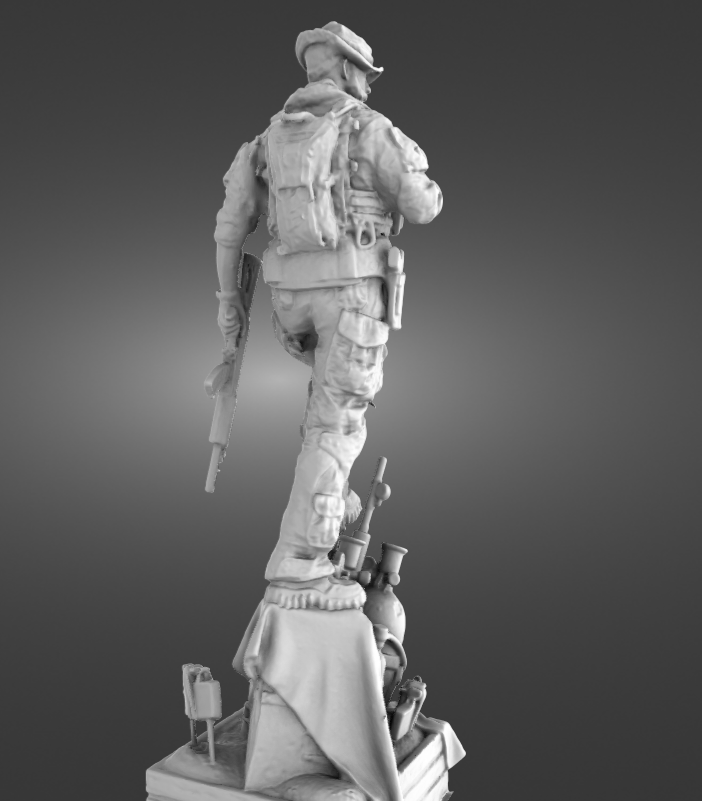
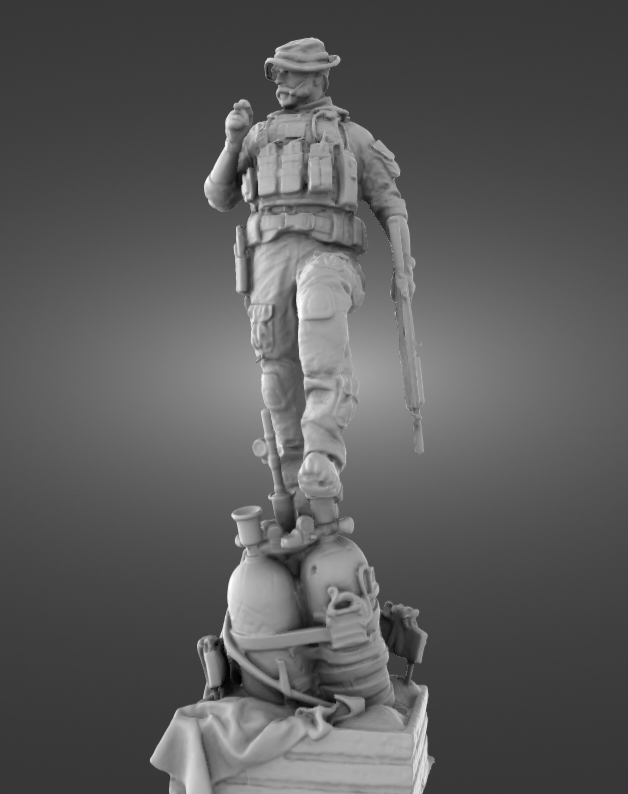
Creality Otter
I used to think 3D scanning was complicated – then I met the CR-Scan Otter. It’s crazy how easy this little device makes it! I’ve already scanned a bunch of things and am figuring out new tricks every time. If anyone’s curious about getting into 3D scanning, this is definitely a great start.